
 Auto logon is not recommended because of the obvious reason that your system is not secure and anyone can simply start your system and grab whatever data he wants. But sometimes there might be a scenario where the computer can be physically accessed by only authorized personnel. In such cases an auto logon might be desired. Here is how to set your windows system to set to auto logon–
- Start and log into your Windows system using an administrator ID.
- Go to start and run Command prompt by typing CMD and hitting enter.
- Enter netplwiz in command prompt and hit enter. (You can directly use the command netplwiz at the start menu instead of CMD but it may or might not work for Windows 10).
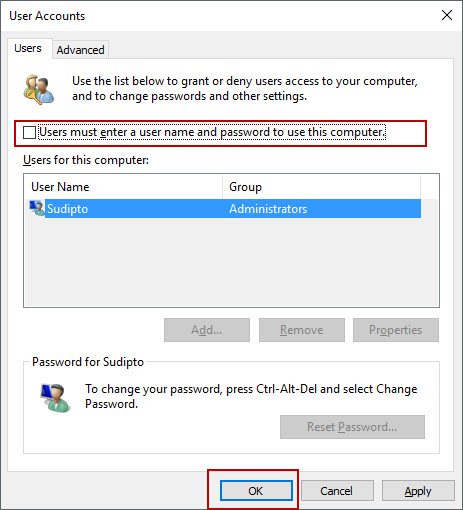
- This should open the User Accounts screen on the Desktop.
- Uncheck “Users must enter a user name and password to use this computer” box at the top and click the OK button.
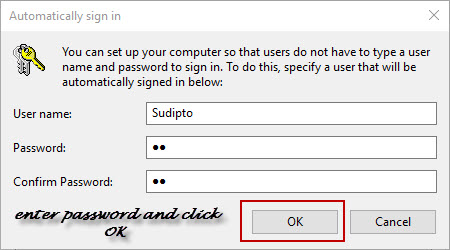
- This will open a popup asking you to enter your username and password. Enter username and password and click OK.
- Windows will save your password and from next reboot it will auto logon skipping the screen where you are required to enter your login details.
I am the founder and developer at TECHXT. Over the decade I have helped hundreds build their own site. All plugins I develop are made have a common goal: Make it as simple as possible and as easy to use as possible.

Do you like this article?