

 Favicon also know as the website/URL icon. Its the icon or the small image that gets displayed next to the site URL on the address bar of your browser. It helps you in branding your site’s URL and people visiting your site can easily recognize if they have visited the right site or not.
If you do not yet have a favicon then you can go to dynamicdrive.com and create your own favicon for free.
Genesis is a premium theme for wordpress and is one the the best premium theme that your site can have. In this tutorial I will show you how to change the favicon of a site powered by Genesis theme.
Method 1 : Manually uploading favicon using FTP or cPanel
The favicon is located in the Image folder of your Genesis child theme with the name favicon.ico. Using cPanel File manager or FTP, go to wp-content/themes/[Genesis child theme folder]/images. Rename the favicon that you generated to favicon.ico and upload the file in this location. Next time when you will refresh your site you will see the favicon that you uploaded next to your site URL in the browser address bar.
Method 2: Using Genesis favicon uploader plugin
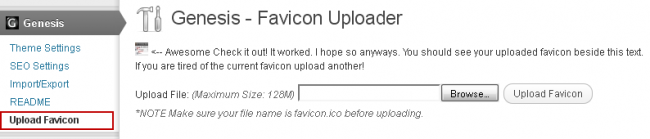
This is the easiest of all methods. All you need to do is install the Genesis favicon plugin. After you have installed and activated the plugin goto Genesis > Upload Favicon. Before uploading your favicon do not forget to rename it to favicon.ico. After uploading refresh this site. You do not need this plugin once the favicon is upload so if you want if can deactivate or even delete this plugin.
Method 3: Using PHP script
This method is for theme designers. You can change the favicon in real time when your site is accessed using PHP script. Add the below script to your Genesis child theme’s function.php (Appearance > Editor > functions.php). Change the favicon path to the path of your favicon image. There are many benefits of using a script like this can be modified to display random favicon for your site.
// Loads favicon from specified URL
add_filter( 'genesis_pre_load_favicon', 'my_favicon' );
function my_favicon( $favicon) {
    //replace this with the path of your favicon file
    $favicon = 'http://example.com/path_of/my_favicon.ico';
    return $favicon;
}

Do you like this article?